

Suppose you started writing something on Facebook but stopped halfway through. Maybe you were in the middle of sharing a story but something distracted you. Maybe the phone rang, your mood changed, or you just weren’t ready to share it yet. That’s where Facebook drafts come in. They save your work for later. Basically, it’s like a quiet notebook holding your unfinished thoughts. Moreover, drafts are a simple but powerful part of Facebook. They also let you pause. They also give you time to think. You don’t always have to hit “Post” right away. You can come back, read it again, and decide if it still feels right. That’s a nice feeling, especially when you’re sharing something personal or important.
You can relate, we write things we don’t want the world to see just yet. It could be a birthday wish you’re preparing in advance. Or maybe it’s a long post about something close to your heart. Basically, you want it to sound right. You want it to feel true. Drafts help with that. They also keep your words safe until you’re ready to let them go. Many people don’t even know Facebook has drafts. But once you find them, they can be really helpful. Whether you’re using Facebook for fun, for work, or just to stay connected, drafts can save you time and stress. They let you plan. Also, they let you breathe. In this article, we are talking about how to find drafts on Facebook. So, keep reading to know more about it.
Drafts on Facebook What is it
You start writing a post on Facebook but don’t finish it. You might get a call, forget what you meant to say, or simply change your mind while writing. A draft on Facebook is like a saved version of your unfinished post. It holds your words so you don’t lose them. You can come back later, add more, change it, or delete it. Think of it like a note to yourself. You’re not ready to share it with the world yet, but you also don’t want to start over from scratch. Drafts are like little bookmarks for your thoughts. This is useful for all kinds of posts. These types of posts can be a deep personal message, a long story, a funny caption, or even something work-related.
So, you don’t always have to post right away. You can take your time. And in today’s fast-paced world, that can feel like a breath of fresh air. Many people don’t even realize Facebook has drafts. On the app, if you back out of a post before finishing it, sometimes it’ll ask if you want to save it as a draft. If you say yes, it stays there waiting for you. It’s not published. Moreover, no one sees it but you. It’s your own private space on Facebook, where your thoughts stay safe until you’re ready. It’s also helpful if you’re someone who likes to plan your posts. Maybe you’re managing a page or just want to post something later. You can write it now, save it as a draft, and post it when the time feels right.
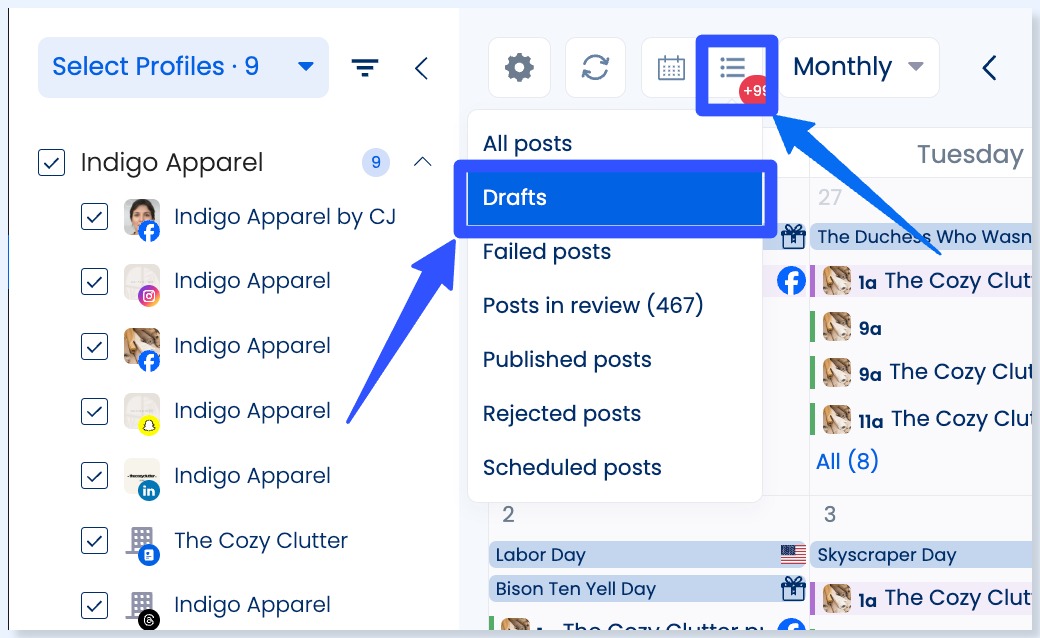
Drafts on Facebook Desktop
If you use Facebook on a computer, there’s something important to know. You can’t save drafts for personal posts on the web version. If you start writing something and switch to another tab, Facebook will ask you if you want to keep writing or leave the page. If you leave, your post will be gone. There’s no way to get it back. But, if you manage a Facebook Page, things are different. You can use Meta Business Suite to save and view drafts. This only works for Pages, not personal accounts. Also, if you save a draft on your phone, you won’t be able to open it later on your desktop. So if you like using a keyboard to write posts, it’s better to use the Facebook app on a Chromebook. To view or manage drafts for a Page, follow these simple steps.
Steps
- First go to facebook.com and log into your account.
- Then, from the left side menu, click on “Pages”.
- Now, select the Page you want to manage.
- Then, check on the left side again, scroll down and click on “Publishing Tools.”
- Then, under the “Posts” section, click on “Drafts.” Basically, this is where all your saved drafts are stored.
- So, to create a new draft, click on the “+ Create” button in the top-right corner.
- If you want to see what a draft looks like, just click on it. To make changes, click “Edit.” If you’re ready to post it, click the arrow next to Edit and choose “Publish” or “Schedule.”
- Then, to save new changes to a draft, click on the button under “News Feed.”
- Next, select “Save as Draft.”
- Then click “Save” again.
- When your post is ready to go live, choose “Share Now” or pick a future time to schedule it. This process gives you control. You can also take your time, polish your message, and post when it feels right.
Drafts on Facebook Android
If you use Facebook on an Android phone, you’re in luck. Facebook lets you save more than one draft there. That’s something you can’t do on other devices. But there’s a small catch. So, you can only find your drafts if you tap the notification that pops up when you save one. Yes, it’s a bit tricky. Let me walk you through it step-by-step so it’s super easy.

Steps
- First, open the Facebook app on your Android phone. Start writing a new post for your timeline, just like you normally would. But this time, don’t post it.
- Now, tap the back arrow in the top left corner of the screen. Then, a small menu will pop up.
- Basically, you’ll see an option that says “Save as draft.” Tap on that.
- Once you do this, Facebook will send a notification to your phone. Then, it will say that your draft has been saved. That’s your only way to get back to the draft later, so don’t ignore it.
- When you’re ready to finish your post, just tap the notification. You’ll now see a list of all your recent saved drafts. It’s helpful if you’re the type who starts a post, then thinks, “I’ll come back to this later.”
- But here’s something important to remember, Facebook only saves your draft for 3 days. After that, it’s gone. So if you care about that post, don’t wait too long.
- Next to each draft, you’ll see three little dots. Then, tap those dots.
- Now you have two options, “Open draft” or “Discard draft.” If you don’t want the post anymore, discard it. If you’re ready to finish it, just open it. When you open a draft, it will look just like any other post you were writing. So, make your changes. Add your thoughts. Say what you wanted to say.
- Once you’re happy with it, go ahead and tap “Post.” Your draft is now live for your friends or followers to see. Moreover, this feature is super handy. Maybe you’re on a busy day and don’t want to lose your thoughts.
Drafts on Facebook IOS
If you’re using an iPhone and want to find your Facebook drafts, don’t worry. It’s simple, and I’ll guide you step-by-step:
- First, open the Facebook app on your iPhone. Make sure you’re logged in to your account.
- Now, look at the bottom right corner of your screen. You’ll see three horizontal lines there. Tap on them.
- This will open a menu. From here, scroll a bit and tap on “Pages.”
- Once you do that, you’ll see a list of pages you manage. Tap on the page where you want to view the saved drafts.
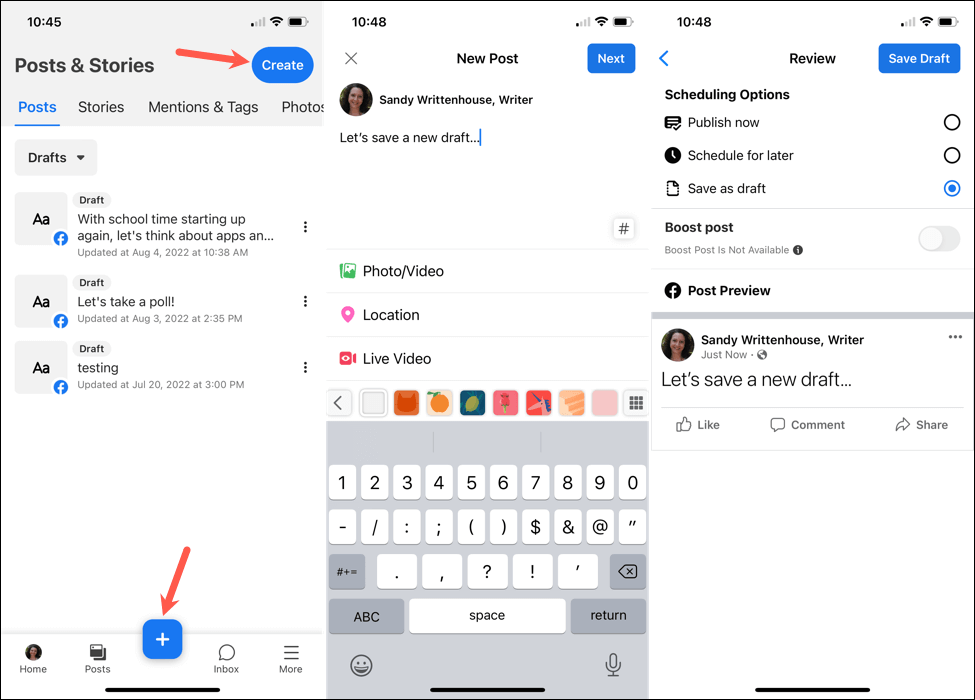
- Now that you’re inside your selected page, look at the top menu and tap the “Posts & Stories” icon.
- Here comes an important part. You’ll see a small dropdown menu. So, you have to tap on that and choose “Drafts.” But keep in mind, this option only shows up if you already have at least one saved draft.

More Steps
- If you don’t see “Drafts,” it means you haven’t saved anything yet. But don’t worry, you can always create one.
- If you do see drafts listed, that’s great. Now you can manage them. Just tap on the three small dots next to the draft you want to work with.
- So, a menu will pop up with a few choices. You can either edit and publish the post now, schedule it for later, or delete it if you’ve changed your mind.
- It’s super helpful if you started a post earlier but didn’t get time to finish it. Maybe you got busy, or maybe you just needed more time to think. These drafts are like little reminders, waiting patiently until you’re ready.
- And if you don’t have any drafts yet, you can make one right now. Just tap the “Post” button, start writing your post, and then save it as a draft instead of posting it.
- This feature is perfect when you want to take your time. No rush. No pressure. Just save your ideas and return to them when you’re ready. So whether you’re running a business page or just planning a thoughtful post, drafts give you that extra breathing room. They help you stay organized and post with care.
Drafts on Facebook App
Drafts are like little notes you keep for later. They hold your words safely until you’re ready to share them with the world. You might not always be in the mood to post right away and that’s okay. Sometimes we just need time to breathe, think, or come back with a fresh mind. Using drafts on the Facebook app is super helpful when you’re writing a post, but life gets in the way. Let’s say you’re writing something personal. Maybe a long birthday message or a deep thought. And suddenly, someone knocks at the door. Or your battery runs low. Don’t worry. Facebook gives you the option to save your post as a draft so you don’t lose anything.

Android
On Android, saving drafts is easy. After you write your post, just press the back arrow. Facebook will ask if you want to save your work. Tap “Save as Draft,” and that’s it. A little message will show up saying your draft is saved. But here’s something important—you can only find that draft through the notification Facebook gives you. If you clear the notification, it might be hard to find again. That’s a bit tricky, but with a little care, it works fine.
Also, drafts don’t stay forever. Facebook only keeps them for about three days. So if you plan to come back to it, don’t wait too long. Open your draft, finish your post, and then share it when you feel ready.
Iphone
If you’re using an iPhone, things are a little different. You can save drafts too, but only for Pages you manage, not personal posts. This is helpful for business owners or people who run Facebook Pages. You can prepare your posts ahead of time, save them as drafts, and post later when it fits your schedule.
How to delete Drafts on Facebook
A draft is like a saved message. It’s something you started writing but didn’t post yet. If you want to remove it later, that’s also very easy. Let’s walk through the steps to delete a draft on Facebook.
Steps
- First, open your browser. Go to facebook.com. Log in with your email or phone number and your password. Make sure you’re using the correct account.
- After logging in, you’ll land on your homepage. Look for the post box that says, “What’s on your mind?” It’s the place where you normally write a new post. Click on it.
- If you have a saved draft, Facebook will let you know. A small message will pop up. It may say something like, “You have an unfinished draft. Do you want to continue editing it?” This means your old draft is still waiting for you.
- Click on that message to open the draft.
- Now you will see the post you had started earlier. At the bottom, there will be an option to discard or delete the draft. Click the Discard button.
- Once you click discard, the draft will be deleted forever. You won’t be able to get it back. So only do this if you’re sure you no longer need it.
Reference URL
https://www.bestsolutionofit.com/blog/google-ads-vs-facebook-ads/
